
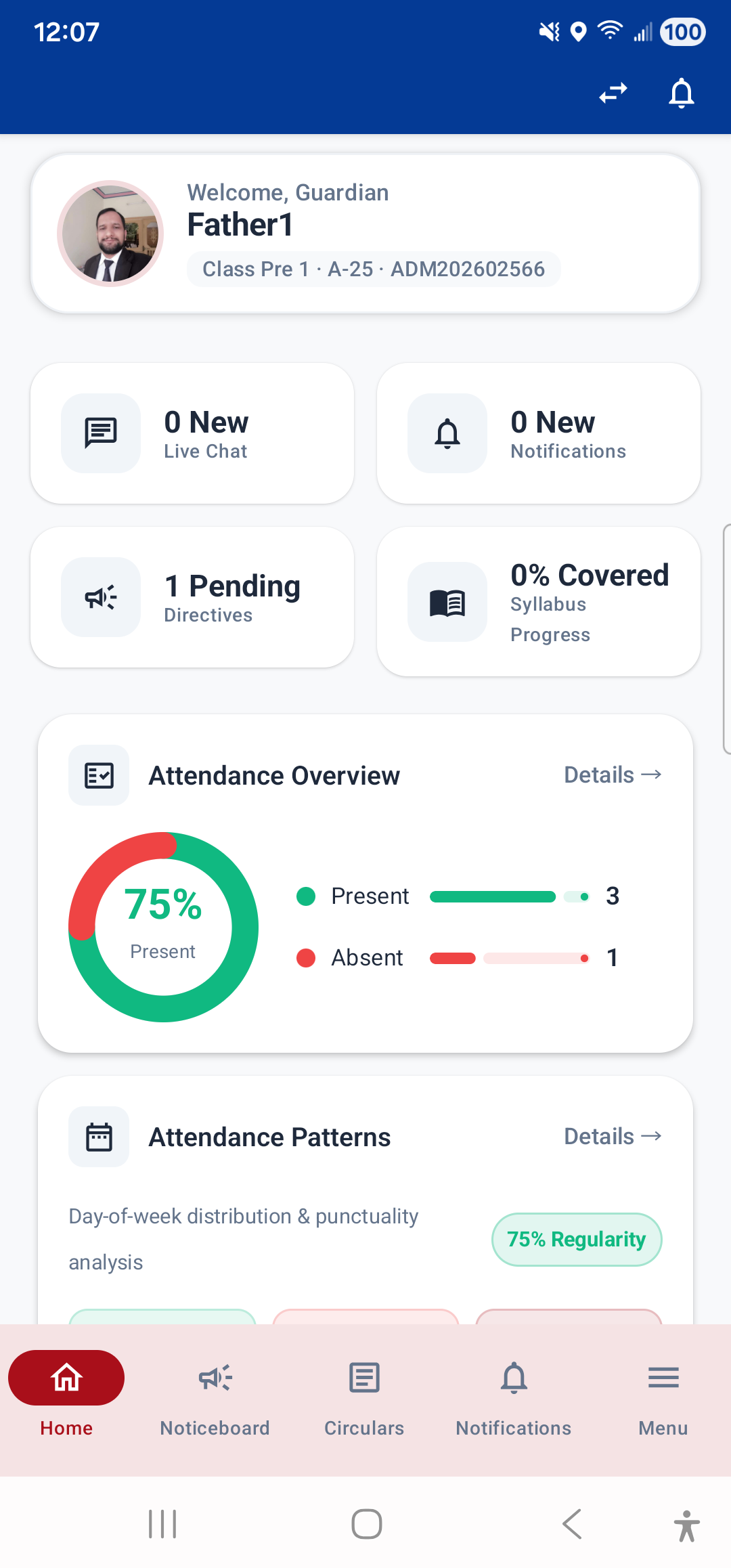
After logging in, you land on the Dashboard — the central hub of the IPSC Student App. It gives you a quick snapshot of everything important: your attendance, fees, homework, exams, timetable, and school announcements.
Profile Header
At the top of the Dashboard, you will see a profile card showing:
- Your name and photo (or initials if no photo is set)
- A greeting like "Good Morning," or "Welcome, Guardian"
- Your Class, Section, and Admission Number
If you are a guardian with multiple children, a child switcher icon appears in the top bar — tap it to switch between your children.
Quick Stats Cards
Below the header, a row of colorful stat cards shows key numbers at a glance:
- Attendance % — your overall attendance rate
- Pending Fees — total outstanding fee amount
- Pending Homework — count of unfinished assignments
- Upcoming Exams — number of exams scheduled soon
Tap any card to jump directly to that module.
Widgets on the Dashboard
The Dashboard displays several widgets that give you a quick overview without needing to open each section:
- Attendance Overview Chart: A bar chart showing your attendance percentage over recent months. Tap to open the full Attendance screen.
- Attendance Patterns: Shows which days of the week you are most frequently absent.
- Subject Performance: A radar chart showing your marks across different subjects — tap to see exam details.
- Fee Progress: A progress bar showing how much of your total fee has been paid vs. pending.
- Syllabus Completion: Shows what percentage of your syllabus has been covered in each subject.
- Today's Timetable: Lists today's class periods with subject names and times.
- Pending Homework: Lists homework assignments that are not yet submitted, with due dates.
- Upcoming Exams: Shows the next scheduled exam(s) with dates.
- Behaviour Summary: Shows recent positive and negative behaviour entries with category breakdown.
- Announcements: Latest notices and circulars from the school.
Pull to Refresh
Swipe down on the Dashboard to refresh all data. The app also automatically refreshes when you return to the Dashboard from another screen.
Historical Sessions
If your school has multiple academic sessions (years), you can switch between them using the session switcher icon in the top bar. When viewing a past session, an orange banner appears — tap "Return" to go back to the current session.
---