
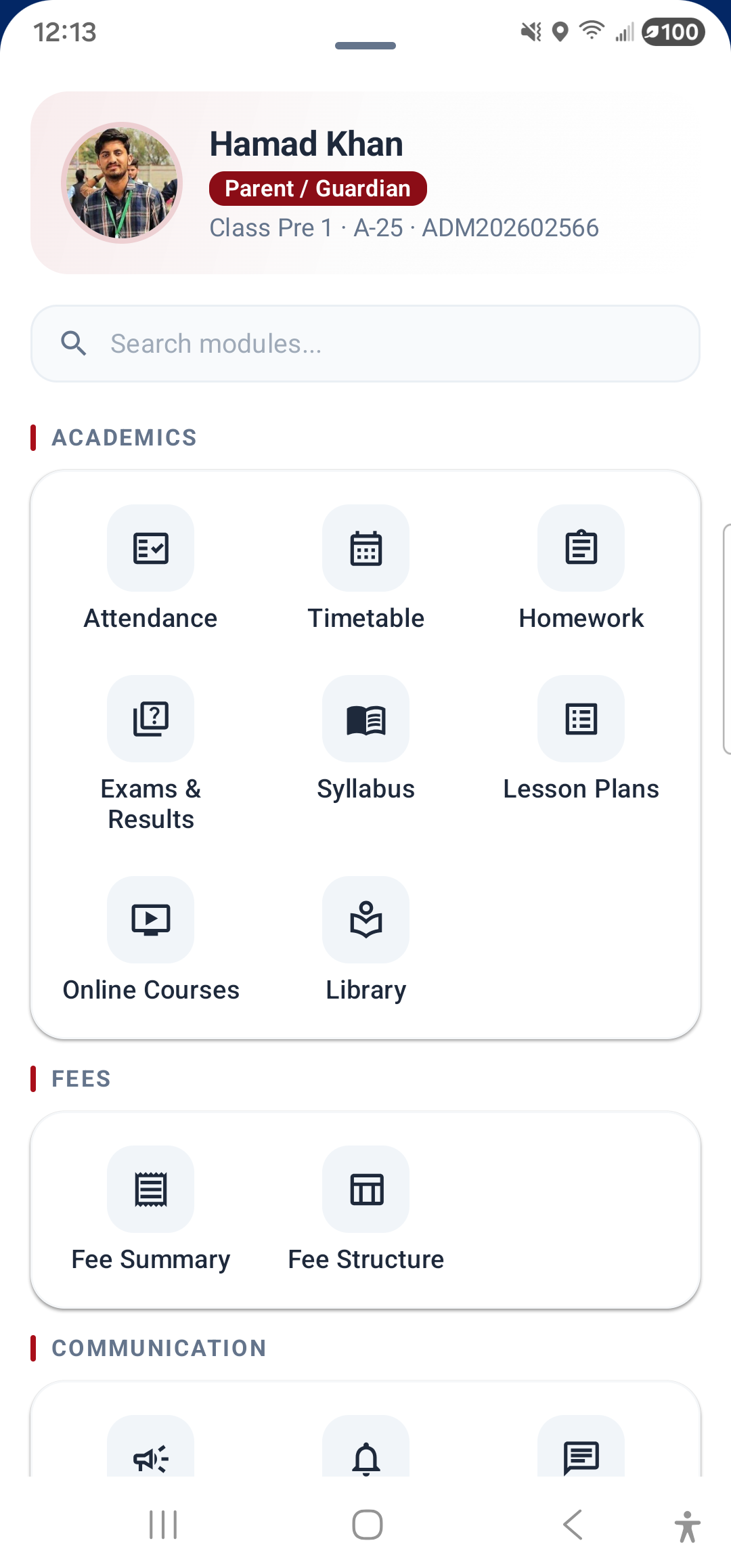
The IPSC Student App uses a bottom navigation bar with five tabs for quick access to the most-used sections, plus a full Menu sheet that lists every module in the app.
Bottom Navigation Bar
The bar at the bottom of the screen has five tabs:
- Home: Takes you to the Dashboard (your home screen).
- Noticeboard: Opens the Noticeboard where school-wide notices are posted.
- Circulars: Opens the Circulars section for formal school circulars and letters.
- Notifications: Shows all your push notifications. A red badge with a number appears here when you have unread notifications.
- Menu: Opens a full bottom sheet with every module organized into sections.
Menu Bottom Sheet
Tap Menu (the last tab) to open a full-screen bottom sheet. At the top, you will see your profile summary (name, role, class). Below that is a search bar — type any module name to quickly find it.
The menu is organized into four sections:
Academics
- Attendance
- Timetable
- Homework
- Exams & Results
- Syllabus
- Lesson Plans
- Online Courses
- Library
Fees
- Fee Summary
- Fee Structure
Communication
- Noticeboard
- Notifications
- Live Chat
- Support Tickets
Services
- Circulars
- Transport
- Certificates
- Letters
- ID Card
- Download Center
- Behaviour
- Events Gallery
- Student Leave
- Rate Teachers
- School Info
- Board Results
- Blog & News
- Help Center
Account Actions
At the very bottom of the menu, four action buttons are available:
- Profile: View and edit your profile
- Children (guardians only): Switch between your children
- Settings: Theme, biometric, and notification settings
- Logout: Sign out of the app
Top Action Bar
On every screen (except the Dashboard), a top bar shows the current page title and a back arrow to return to the previous screen. On the Dashboard, the top bar shows session and child switcher icons plus a notification bell.
---